free VPN for edge extension(2026)

Find a free VPN extension for Microsoft Edge, understand its limits, and choose one more safely.
A free VPN for Edge extension can help route browser traffic through a VPN service and mask your IP address from websites. Options listed in the Microsoft Edge Add-ons store include VeePN, Browsec VPN, and Planet VPN. However, a free label alone does not tell you how the service handles your data or what its limits are, so check the listing and provider’s terms before installing.
Free VPN and proxy extensions for Edge
| Option | Free access | Connection model | Useful for | Main limitation |
|---|---|---|---|---|
| Microsoft Edge Secure Network | Limited free protection | Built into Edge | Occasional browsing privacy | Not a full VPN replacement |
| Windscribe | Free plan | VPN service with extension | More location choices | Free data limit |
| Proton VPN | Free plan | VPN service | Privacy-focused browsing | Extension access may require a paid plan |
| Browsec | Free tier | Browser proxy extension | Simple location switching | Free locations may be limited |
| SetupVPN | Free tier | Browser proxy extension | Basic browser access | Check privacy practices carefully |
| Urban VPN | Free tier | Peer-to-peer network | Basic location switching | Traffic may use other users’ devices |
Compiled November 2026; check the provider's site for current details.
| VPN | Obfuscation | From / month | Plan | Free plan | Refund | Alipay | UnionPay | Crypto | Website opens in China | Trustpilot | |
|---|---|---|---|---|---|---|---|---|---|---|---|
 Windscribe | Turn on manually Stealth / WStunnel | $5.75/mo | 12 months: $69 | Yes | See site | ✗ | ✗ | ✗ | ✓ | ✗ Blocked | 4.7/5 (13,355 reviews) |
 Proton VPN | Turn on manually Stealth, free plan too | $2.99/mo | 12 months: $35.88 | Yes | 30 days | ✗ | ✗ | ✗ | ✓ | ✗ Blocked | 2.1/5 (1,040 reviews) |
 ZoogVPN | Turn on manually Shadow | $2.49/mo | 27 months: $59.99 | Yes | 7 days | ✓ | ✓ | ✓ | ✓ | Official site blocked; our special link opens (4.4 s) | 4.2/5 (195 reviews) |
 NordVPN | Turn on manually Obfuscated Servers / NordWhisper | $3.49/mo | 27 months: $94.23 | No | 30 days | ? | ✗ | ✓ | ✓ | ✗ Blocked | 4.2/5 (51,628 reviews) |
 ExpressVPN | ✓ On by default all servers | $3.00/mo | 28 months: $84 | No | 30 days | ✗ | ✗ | ✓ | ✗ | ✗ Blocked | 4.4/5 (29,706 reviews) |
 Surfshark | ✓ On by default Camouflage, with OpenVPN | See site | See site | No | 30 days | ✗ | ✗ | ✗ | ✓ | ✗ Blocked | 4.3/5 (31,823 reviews) |
 Astrill VPN | Turn on manually StealthVPN / OpenWeb | $12.50/mo | 24 months: $300 | No | See site | ✗ | ✗ | ✗ | ✓ | ✗ Blocked | 1.3/5 (110 reviews) |
 Private Internet Access | Turn on manually Shadowsocks, OpenVPN only | $2.03/mo | 40 months: $81.2 | No | 30 days | ✗ | ✗ | ✗ | ✗ | ✗ Blocked | 4.2/5 (11,033 reviews) |
 CyberGhost | Turn on manually selected servers | $2.19/mo | 28 months: $61.32 | No | 45 days | ✗ | ✗ | ✗ | ✓ | ✗ Blocked | 4.0/5 (24,178 reviews) |
 PureVPN | Turn on manually switch to OpenVPN | $1.69/mo | 60 months: $101.55 | No | 31 days | ? | ? | ✗ | ✓ | ✗ Blocked | 4.4/5 (17,994 reviews) |
 AdGuard VPN | ✓ On by default TrustTunnel | $2.99/mo | 24 months: $71.76 | Yes | 30 days | ✓ | ✗ | ✓ | ✓ | Official site blocked; our special link opens (3.7 s) | 4.3/5 (290 reviews) |
 Mullvad | Turn on manually QUIC / Shadowsocks / LWO | $5.61/mo | €5/mo | No | 14 days | ✗ | ✗ | ✗ | ✓ | ✗ Blocked | 3.2/5 (192 reviews) |
 StrongVPN | Turn on manually Scramble, OpenVPN TCP | See site | See site | No | 30 days | ✓ | ✗ | ✗ | ✗ | ✗ Blocked | 4.4/5 (2,695 reviews) |
 LightXtreme 闪连 | Not listed | $7.08/mo | 12 months: $84.99 | Yes | 30 days | ✓ | ✓ | ✓ | ✓ | ✓ Yes (3.5 s) | No page |
Prices checked 2026-11-10 on each vendor's pricing page (cheapest long plan, USD). Check the vendor's checkout for the final price.
Obfuscation checked 2026-11-14 on each vendor's site and help center: "on by default" = nothing to set; "turn on manually" = switch protocol or mode in settings; "not listed" = the vendor describes no obfuscation.
Payment methods checked 2026-11-10 on each vendor's payment pages: all 14 take cards and PayPal; ✗ = not listed, ? = the vendor's own pages disagree.
China access: whether the official website opens from mainland China networks (tests the website only, not the VPN connection). Last checked 2026-11-18 01:02 Beijing time.
Trustpilot score and review count checked 2026-11-10.
Does Microsoft Edge have a free VPN?
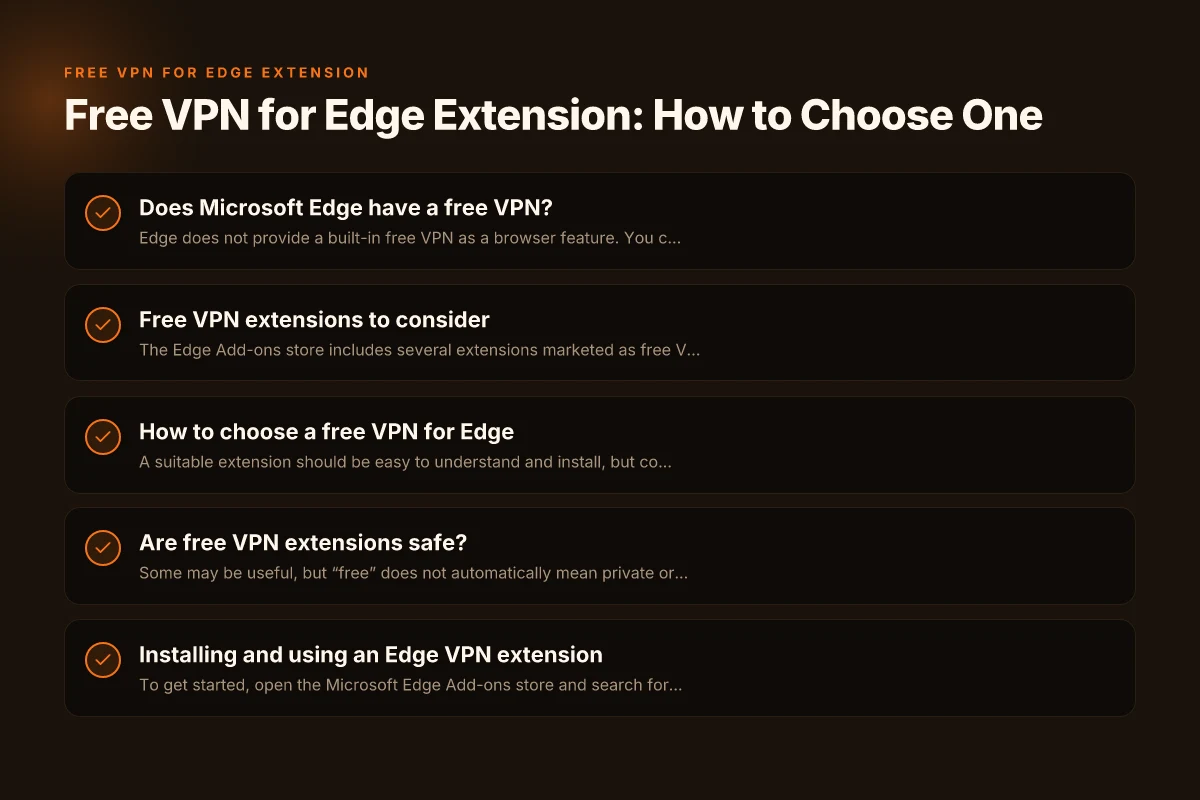
Edge does not provide a built-in free VPN as a browser feature. You can add a VPN extension from the Microsoft Edge Add-ons store instead. These extensions connect through a provider’s service, and their protection may apply to browser traffic rather than every connection on your device.
That distinction matters. A browser extension may be convenient for browsing in Edge, but it is not necessarily the same as a full VPN app. Check the provider’s description to understand what traffic is covered and whether the extension requires an account or has plan restrictions.
Free VPN extensions to consider
The Edge Add-ons store includes several extensions marketed as free VPNs. Their descriptions make different claims, so compare the details rather than assuming all free options work the same way.
| Extension | What its listing says |
|---|---|
| VPN Proxy VeePN | Promotes a free Edge extension for browsing, streaming, gaming, and accessing blocked websites. |
| Browsec VPN | Says it protects your IP and supports private browsing for free. |
| Planet VPN | Describes its extension as lightweight and unlimited, with connection protection and privacy features. |
These are examples from the store, not a guarantee that any option is the best fit. Listings and service terms can change. Read the current Microsoft Edge Add-ons page and the provider’s privacy information before you choose. free VPN edge extension(2026)
What about “unlimited” or “no logs” claims?
Treat feature claims as a starting point for your research. For example, Planet VPN’s listing describes its extension as unlimited, while VeePN’s website advertises no ads, no logs, and unlimited data. A provider’s own wording does not replace reviewing its privacy policy and current terms.
Look for clear explanations of:
- What data the provider collects
- Whether connection or browsing activity is logged
- How long any collected data is retained
- Which features are available on the free plan
- Whether the extension has data, speed, or server restrictions
Choosing a free VPN extension for Edge
| What to check | Prefer | Watch out for | Why it matters |
|---|---|---|---|
| Data allowance | Clear, sufficient allowance | Hidden or very small cap | Prevents unexpected interruptions |
| Privacy policy | Plain-language, specific policy | Vague logging disclosures | Shows how browsing data is handled |
| Provider identity | Established, identifiable company | Unknown operator | Makes accountability easier |
| Security | Clear encryption and connection details | Unsupported security claims | Helps protect browser traffic |
| Permissions | Only necessary permissions | Broad access without explanation | Limits access to browser data |
| Monetization | Transparent funding model | Unclear advertising or data sharing | Reveals how free access is funded |
| Independent reviews | Recent, credible assessments | Unsupported “no logs” claims | Adds evidence beyond marketing |
| Support | Clear help and account controls | No contact or removal guidance | Helps resolve issues and leave safely |
Compiled November 2026; check the provider's site for current details. VPN extension edge free(2026)
How to choose a free VPN for Edge
A suitable extension should be easy to understand and install, but convenience is only one part of the decision. Use this checklist before connecting:
- Check the publisher: Confirm that the extension comes from the provider you intended to install.
- Review permissions: Be cautious if requested access seems broader than needed for the advertised features.
- Read the privacy policy: Look for specific information about collection, use, and retention of data.
- Check free-plan limits: Confirm whether there are restrictions on data, speed, locations, or features.
- Inspect recent reviews: Look for recurring reports about connection problems, intrusive behavior, or unexpected limitations.
- Keep the extension updated: Updates can address bugs and security issues, so avoid leaving an extension unattended.
If a provider’s privacy practices are vague or the extension asks for permissions you cannot explain, choose another option.
Are free VPN extensions safe?
Some may be useful, but “free” does not automatically mean private or secure. A VPN provider operates the service that routes your traffic, so you are placing trust in that provider. A VPN can also change the IP address websites see, but it does not make you anonymous or protect you from every online threat.
Keep these points in mind: nord VPN for pc(2026)
- A VPN does not prevent every kind of tracking. Websites may still recognize you through cookies, account sign-ins, or other browser signals.
- A browser extension may not protect traffic from other apps on your device.
- A VPN does not make suspicious downloads or links safe.
- Claims such as “no logs” should be checked against the provider’s policy, not treated as a guarantee based only on promotional copy.
For sensitive activities, review the provider’s privacy practices carefully and consider whether a free browser extension meets your needs.
Installing and using an Edge VPN extension
| Step | What to do | Check before proceeding | Good sign |
|---|---|---|---|
| 1. Choose | Select a provider that supports Edge | Official provider information | Edge support is stated clearly |
| 2. Find | Open Microsoft Edge Add-ons | Publisher and listing details | Listing matches the provider |
| 3. Install | Add the extension to Edge | Requested permissions | Access fits the stated features |
| 4. Set up | Create an account if required | Data and plan terms | Free limits are explained |
| 5. Connect | Choose a location and connect | Connection status | Extension shows an active connection |
| 6. Test | Check your public IP and location | Results before and after connecting | Location changes as expected |
| 7. Browse | Use the extension while connected | Sites that need your real location | Some sites may block VPN traffic |
| 8. Remove | Disable or uninstall if unwanted | Account and data deletion options | Provider explains how to close access |
Compiled November 2026; check the provider's site for current details.
Installing and using an Edge VPN extension
To get started, open the Microsoft Edge Add-ons store and search for the provider or extension name. Review its description, publisher, permissions, and privacy information before selecting the option to add it to Edge. VPN extension for edge free(2026)
After installation:
- Open the extension from Edge’s toolbar.
- Sign in or create an account if the service requires it.
- Choose an available location and connect.
- Check the extension’s status before browsing.
- Disconnect when you no longer need the VPN, and revisit settings if you want to change permissions or behavior.
Follow the provider’s instructions if its setup process differs. If the extension behaves unexpectedly, disconnect it and check the provider’s support information.
Recommendation
For a free VPN for Edge extension, start with the Microsoft Edge Add-ons store and compare options such as VeePN, Browsec VPN, and Planet VPN. Choose based on transparent privacy terms, appropriate permissions, and clearly stated free-plan limits, not just promotional claims. If you need protection beyond Edge browser traffic, check whether the provider offers a separate VPN app and confirm what its plan covers.